
Want to turn your idea into a real mobile or web app using AI? The blog explains a step-by-step process for building, previewing, and publishing full apps with Rocket.new without extensive coding, saving months of development time.
Rocket offers a remarkable path from idea to deployed product in minutes. In this guide, you’ll learn exactly how to create your first app with Rocket.
Go from concept to a production-ready app — using practical steps, real details, AI-powered features, and strategic choices that help you ship faster and smarter.
Rocket turns natural language and design assets into real apps — including both web app and mobile app versions — without requiring great technical skills. You can start from an idea, type a prompt, use templates, or even upload Figma designs. The platform handles the backend, UI, database, and launch pipeline for you.
What is Rocket.new and Why it Matters?
It is a modern AI app builder rather vibe solutioning platform designed to transform your app idea into full-featured, production-ready projects, including mobile apps and web apps, without writing manual code. Unlike many traditional code platforms, Rocket uses natural language to understand your vision and generate not just UI, but backend logic, database schemas, deployment pipelines, and integrations.
This capability makes Rocket a compelling choice if you want to build app projects quickly, test ideas, create MVPs, launch internal tools, or prototype client software, all without months of development work or hiring large developer teams.
Real data shows Rocket has been adopted by hundreds of thousands of creators globally, and many users are building serious applications, not just simple landing pages.
How Does Rocket Work?
At its core, Rocket uses AI to automate the technical heavy lifting:
- You enter a text prompt describing what you want.
- Rocket analyzes context, determines features, and plans structure.
- The platform generates frontend and backend code, including authentication, database schemas, API endpoints, and deployment pipelines.
- You get a working app with preview and export options.
This enables the creation of both mobile and web apps without manual coding. Moreover, you can edit or expand existing screens, automate logic, debug issues, and fix behavior with AI prompts.
Before you Begin: Prepare your App Idea
Before you start building, take a few moments to plan your app idea. This doesn’t have to be elaborate, but it should cover the following:
- Core purpose: Be Clear about what problem your app is going to solve.
- Target audience: Who will use this app?
- Context: Provide background information AI needs.
- Key screens: Highlight the must-have pages — home, login, dashboard, settings.
- Data you'll collect: What kind of data does your app need, and where should it be stored?
- Expectations: Specify the exact output you are expecting for your initial app.
A clear idea helps Rocket produce better results and reduces rework later.
Refer to Rocket docs for more information.
Getting Started with App Development: All Steps
Step 1: Sign up and Start a New Project
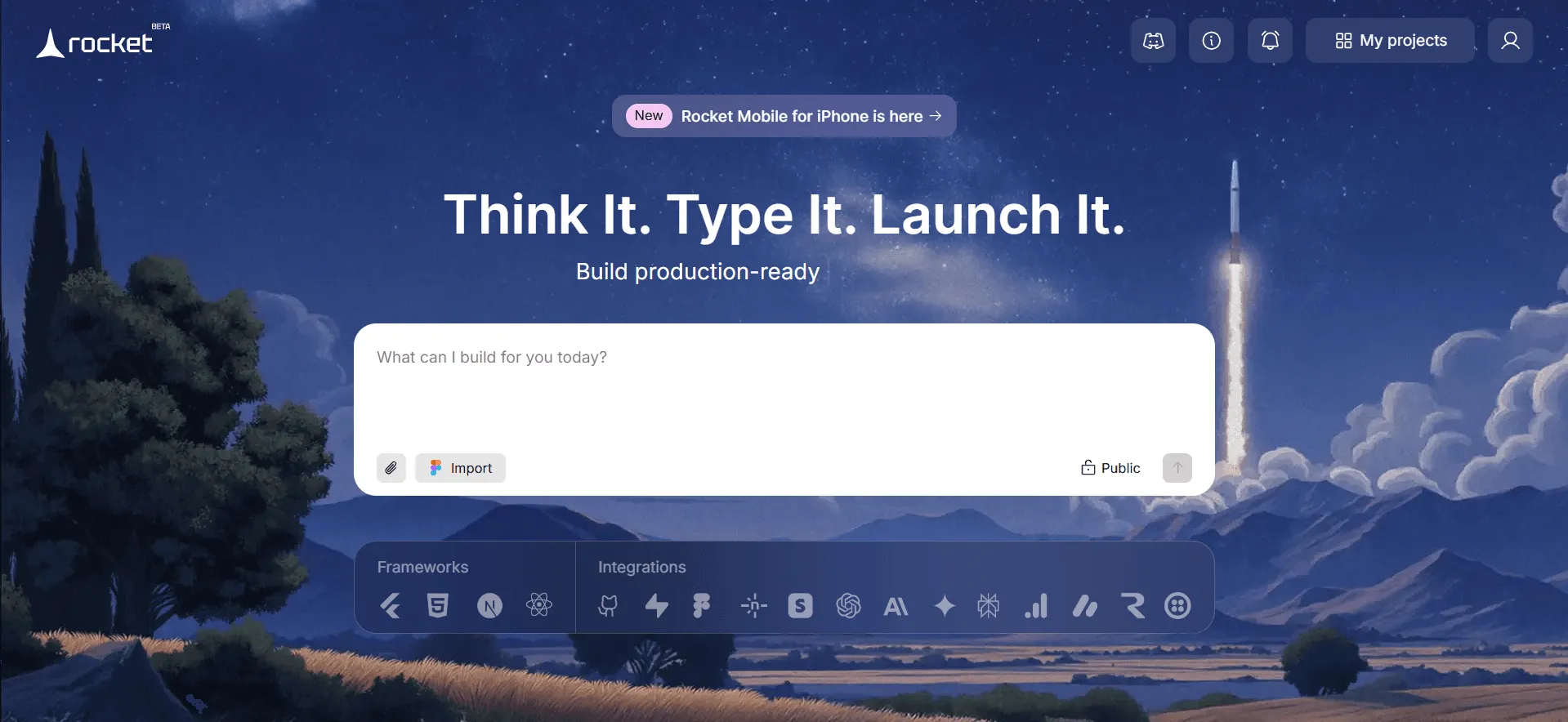
- Go to Rocket.new and sign up using Google or your work email. Inside the workspace, you’ll see options to begin with a prompt, upload an image, use a Figma file, or start from templates.
- Describe your app idea to start a new project, or import the Figma file to generate a project, or upload an image from your device and guide Rocket.
Note: Before you start a project, use the visibility toggle, public or private, to the right of the input field.
Step 2: Build an App with the Selected Option
As you can see, Rocket supports multiple ways to begin:
Method A: From a Written Prompt
This is the most direct way to create apps using natural language.
- Describe Your App Idea: For example: “Build a mobile app for workout tracking with user authentication, daily goals, and progress charts.”
- Select a Use Case: Choose the build type — Mobile App, Web App, Internal Tool, Website, Dashboard, or Landing Page.
- Choose Platform (For Internal Tool only): Select Web or Mobile to continue.
- Select Framework:
- Landing Page: Default HTML (no framework choice).
- Web App: Default React + JavaScript + Tailwind CSS, or customize (React, Next.js, HTML).
- Mobile App: Uses Flutter.
- Choose Screens: Review suggested screens and deselect unnecessary ones.
- Build the App: Rocket generates the app and shows progress (Completed, In progress, Failed).
- Retry if Needed: Click Retry for failed screens or simplify features and regenerate.
This method is ideal if you want to build app prototypes and full apps fast without any initial design files.
Explore more with the Prompt library.
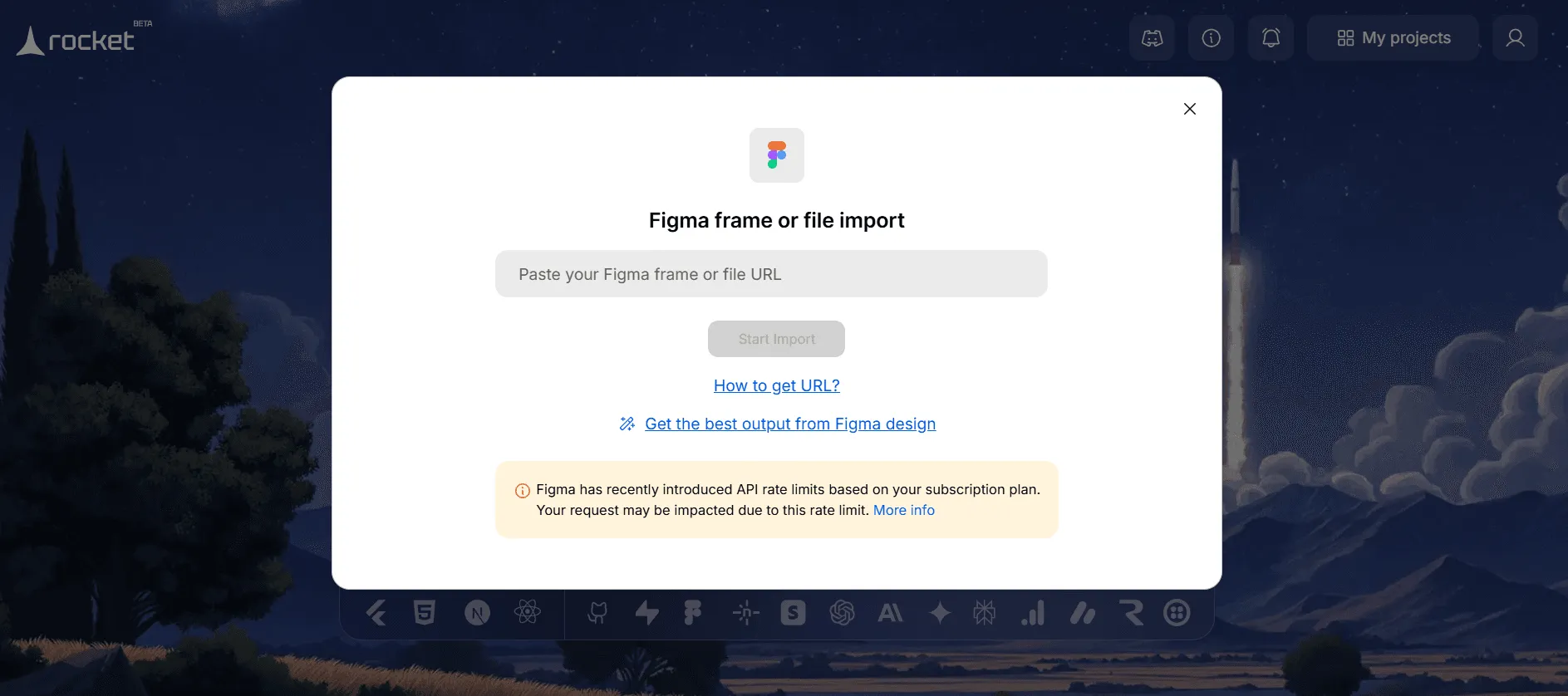
Method B: From a Figma Design
If you have UI designs in Figma:
- Paste your Figma shareable link into Rocket.
- Rocket imports the visual layout and converts it into working screens.
- From here, you can refine or enhance the logic using prompts.
This is great for designers and product teams who have prepared UX flows for building web or mobile apps.
Method C: Upload an Attachment
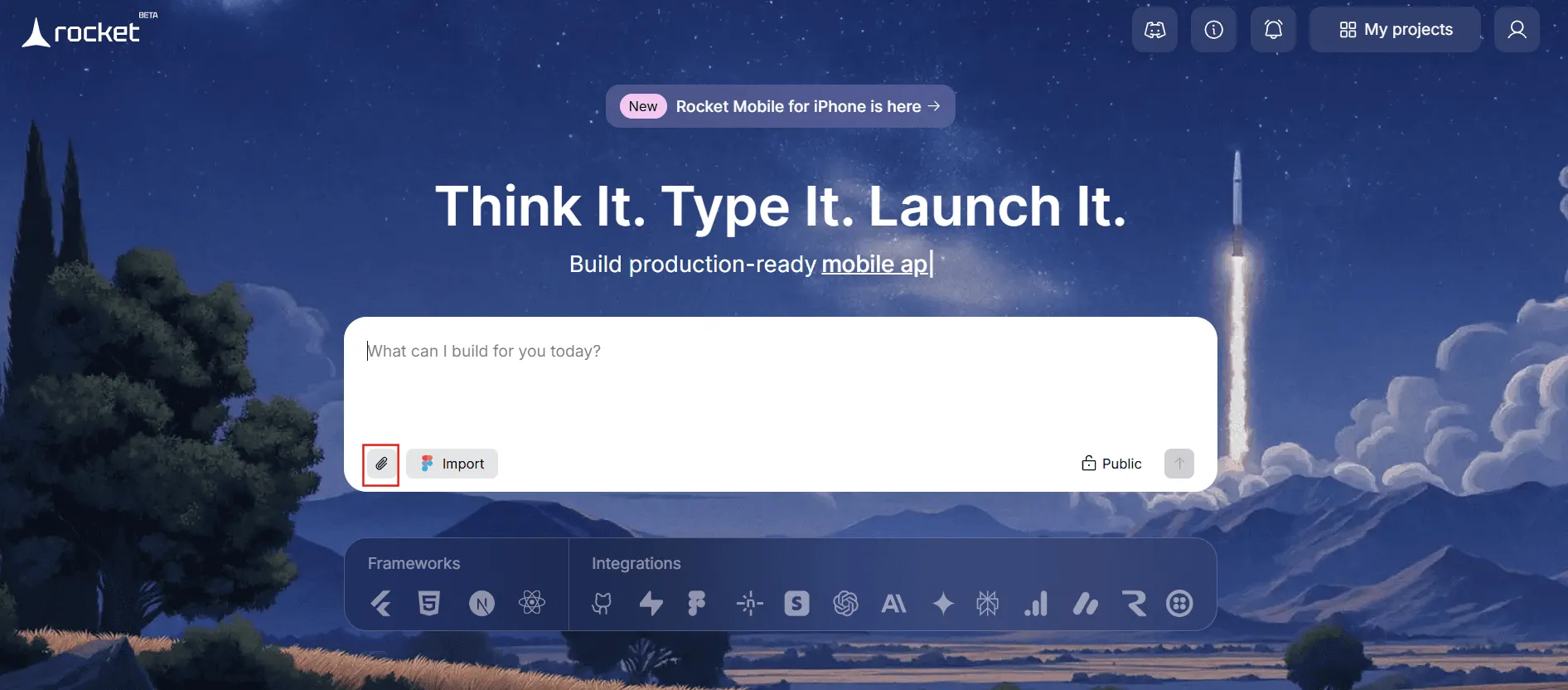
- Upload an Image: Add a UI mockup, wireframe, or screenshot (.png/.jpg/.jpeg, under 10 MB) to guide the build.
- Add Instructions: Describe what to create using the uploaded image as a reference.
- Generate the App: Press Enter to start Rocket building the app, then continue selecting the framework, screens, and tracking the build progress.
Method D: Use Templates
Rocket features a library of templates for landing pages, dashboards, websites, mobile apps, and internal tools, including trackers, delivery apps, and activity dashboards. Templates let you quickly jump-start a project and then customize it, simplifying app creation.
Templates are often free to start and help you learn Rocket’s build logic while giving you a real project you can tweak.
Step 3: Refine your App Structure with App Studio
Whether you start with a prompt or a template, you need to choose the screens and structure, including Authentication (sign-in/up), Main screens (e.g., home, dashboard, list views), Details pages, and Settings. Rocket will show a list of suggested screens. Deselect any you don’t need or add more as necessary.
What if you are looking for a more refined page structure?
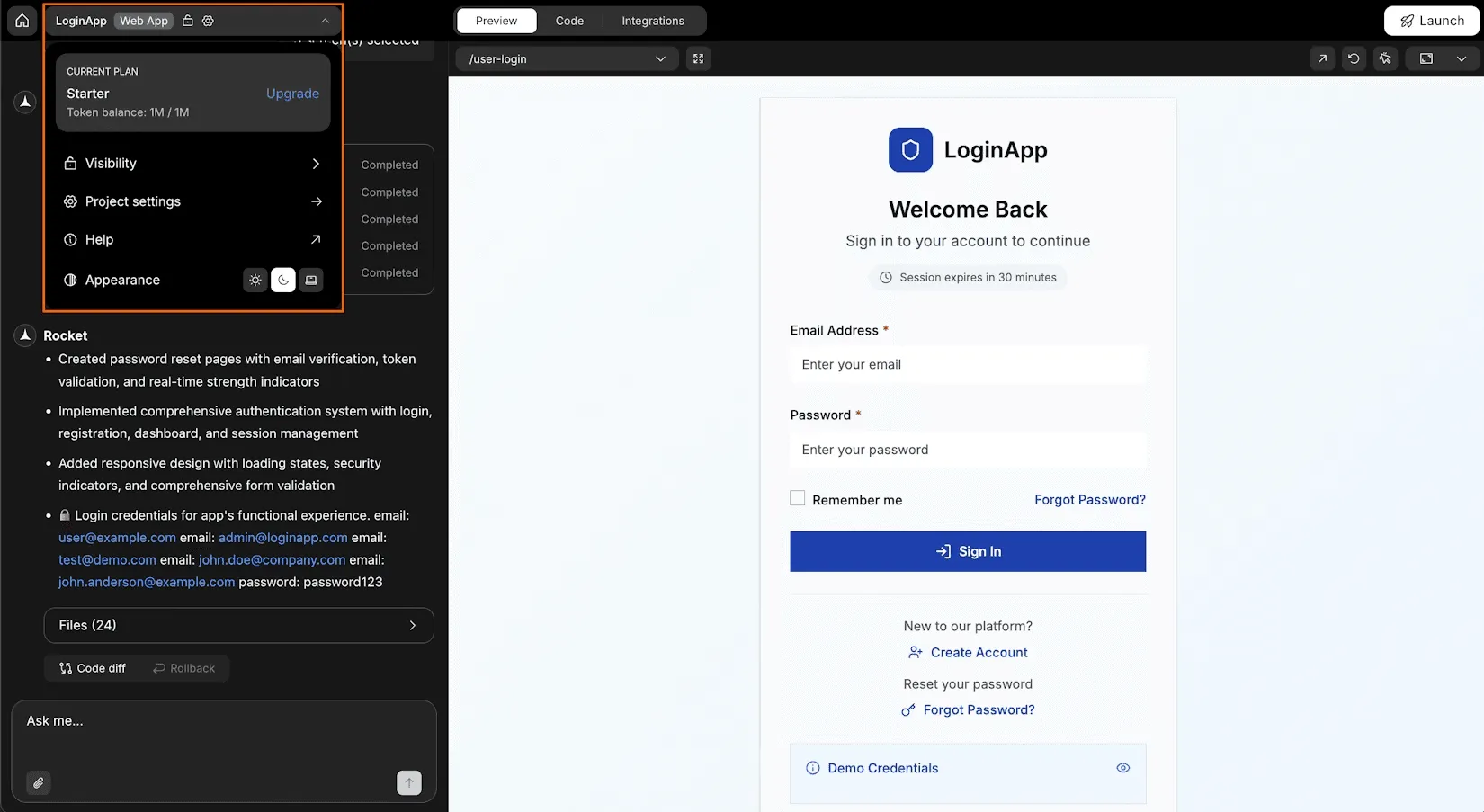
With Rocket App Studio (Chat Interface) you can exactly do that; easily build, edit, and evolve your entire app through a continuous chat conversation—no coding required.
With App Studio, you can:
- Manage Your Project: Watch Rocket generate files, preview outputs, compare changes, rollback versions, fix errors, and update the app using simple messages or images.
- Control & Enhance: Access plan details, visibility, settings, and integrations from the App menu, and extend your app to the full stack with integrations such as Supabase.
Planning these upfront helps Rocket generate a clean, logical app structure and reduces rework later.
Step 4: Watch Rocket Generate Your App
After you finalize the final structure:
- Hit Generate.
- Rocket will process your inputs and start building the app.
- You can monitor progress in the interface.
This can take minutes depending on complexity.
Rocket’s AI builds both client UI and backend infrastructure — including database connections and server code — in one pass.
Step 5: Preview and Iterate
Once the initial build completes:
- Explore your app in the preview panel.
- Test navigation, UI flows, and data interactions.
- Add or remove features by adjusting prompts.
- Make iterative changes — Rocket will rebuild screens as needed.
This process feels like working with an intelligent assistant that understands how apps should behave.
Step 6: Build for Mobile Devices
After refining your project:
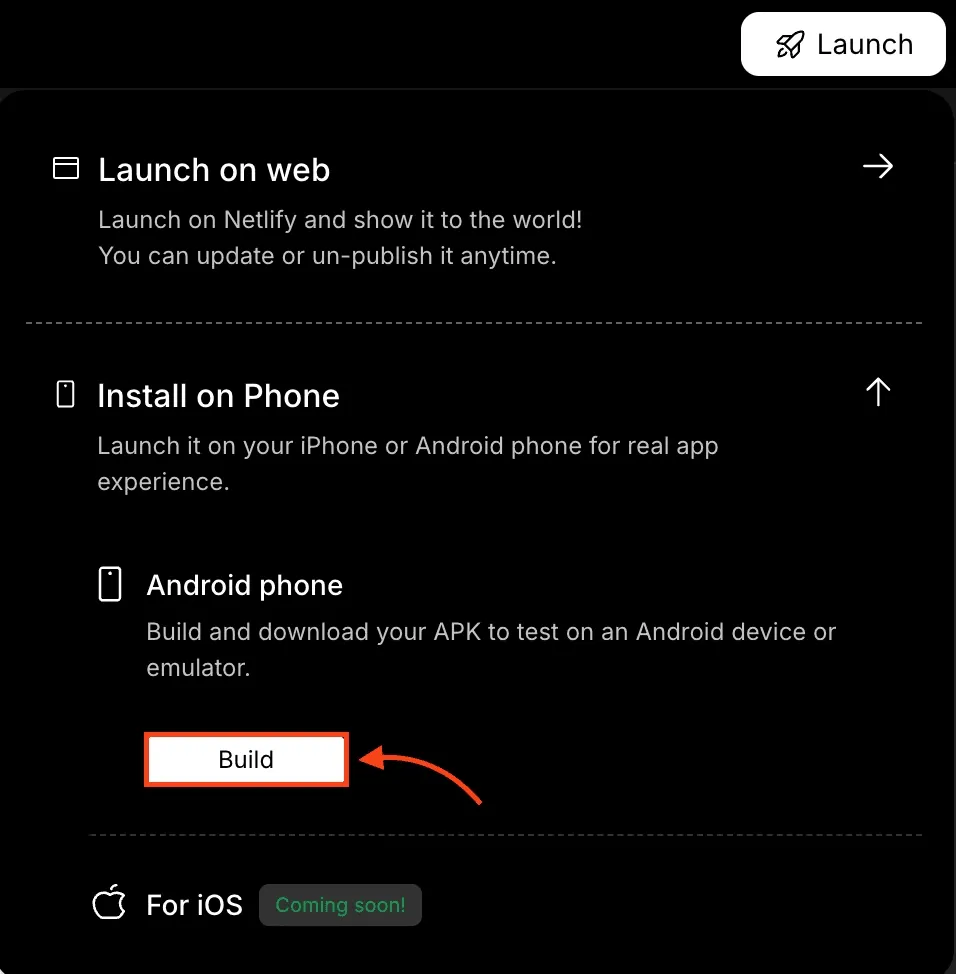
- Open the Launch menu.
- Choose Build for Android or iOS.
- Rocket will compile a native mobile app build.
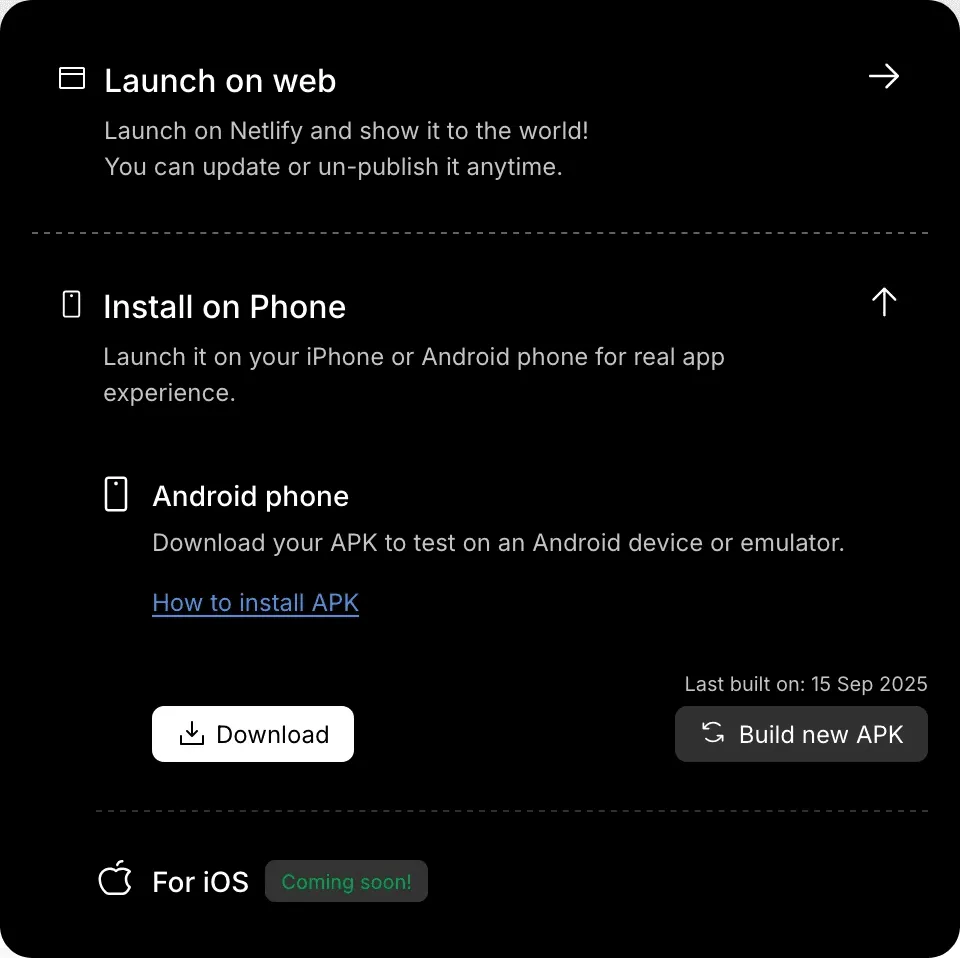
Mobile builds generate APK files for Android and — once available — IPA for iOS. You can then install it on your device or prepare for distribution to the app store later.
Step 7: Download and Publish
Once the build finishes:
- Download the compiled mobile app file.
- Test on your device.
- For distribution, submit Android builds to Google Play and iOS builds to the Apple App Store using their respective developer programs.
Rocket gives you the code and the asset exports you need to do this.
Tips for Better Results
Be Clear With Prompts
The most effective builds come from detailed, specific prompts. For example:
- “Create a mobile app with user login, a social feed, push notifications, and a settings page with theme toggles.”
Clear prompts help Rocket’s AI generate high-quality screens and flows.
Use Templates First
Templates provide structure and real screens you can adjust. They act like starter projects that teach how Rocket works and speed up your development.
Test Incrementally
Rather than building an entire product in one prompt, build in small steps:
- Create authentication first.
- Add the main screens next.
- Then add advanced features like integrations.
This approach simplifies debugging and reduces iteration time.
Common Challenges and How to Handle Them
Token Usage
Rocket operates on token limits during builds. Larger apps may consume more tokens — especially if you iterate multiple times. Users often upgrade plans for more tokens as projects grow.
Editable Code
While Rocket generates complete apps, the code may sometimes need refinement for complex logic or custom integrations. You can export to GitHub and continue development manually if needed.
Learning Curve
New users may initially spend time learning prompts and structuring ideas effectively. Real users say experimenting with prompt phrasing and small refinements yields better outputs.
Real Experiences from the Community
Many creators report that Rocket significantly accelerates the path from idea to live app — especially for prototypes and MVPs. Some users noted that token usage can be high for larger builds, but overall, the AI-powered workflow helps them build apps faster than traditional coding.
Many discussions highlight the value of rapid iteration and the export of on-site preview links, enabling team members to comment and guide development.
For example, some developers use workflows where Rocket helps generate the initial codebase, which they later refine or export to continue in a traditional code editor.
Next Steps After Building Your First App
After you’ve successfully built your first project:
- Plan updates and enhancements based on user feedback.
- Connect version control (e.g., GitHub) for collaborative development.
- Integrate analytics to track user behavior.
- Prepare your app for launch in major app stores.
- Continue learning how to refine logic and add integrations.
Familiarizing yourself with these patterns makes future projects even faster.
Final Thoughts: Creating Your First App with Rocket.new
Rocket transforms the way apps are built by turning ideas into fully functional web and mobile applications through an intuitive, AI-driven workflow. Instead of spending months navigating traditional development cycles, creators can move from concept to launch in the fastest way—making app development accessible to entrepreneurs, designers, and innovators regardless of coding experience.
With thoughtful planning, clear prompts, ready-to-use templates, and step-by-step iteration, Rocket empowers you to shape, refine, and launch your vision faster than ever—turning “I have an idea” into “My app is live” with remarkable ease.
Table of contents
- -What is Rocket.new and Why it Matters?
- -How Does Rocket Work?
- -Before you Begin: Prepare your App Idea
- -Getting Started with App Development: All Steps
- -Step 1: Sign up and Start a New Project
- -Step 2: Build an App with the Selected Option
- -Method A: From a Written Prompt
- -Method B: From a Figma Design
- -Method C: Upload an Attachment
- -Method D: Use Templates
- -Step 3: Refine your App Structure with App Studio
- -Step 4: Watch Rocket Generate Your App
- -Step 5: Preview and Iterate
- -Step 6: Build for Mobile Devices
- -Step 7: Download and Publish
- -Tips for Better Results
- -Be Clear With Prompts
- -Use Templates First
- -Test Incrementally
- -Common Challenges and How to Handle Them
- -Token Usage
- -Editable Code
- -Learning Curve
- -Real Experiences from the Community
- -Next Steps After Building Your First App
- -Final Thoughts: Creating Your First App with Rocket.new