
Why does Figma-to-code still slow modern teams down? Designers ship polished files, yet developers rebuild layouts manually. With Rocket.new, teams convert Figma into structured HTML, CSS, and React interfaces faster, preserving quality and momentum.
Modern product teams move fast. Designers ship polished Figma designs. Developers wait for specs, inspect layers, copy spacing, and start writing HTML and CSS from scratch.
Somewhere between the Figma file and the final app screen, momentum drops. The handoff feels slower than it should be.
So the real question is not whether you can build the interface. It is about converting Figma files into a working app UI without burning hours on repetitive manual coding.
Let's break down a practical Figma-to-code workflow using Rocket.new. You will learn how to convert Figma designs into production-ready code, export structured HTML and CSS code, and generate React or react native interfaces that actually match your design and maintain strong code quality.
Why Figma to Code Matters for Modern App Development
Most designers use Figma because it supports rapid prototyping, collaborative workflows, and reusable components. It also supports auto-layout, structured layers, and interactive prototypes that closely mimic real app behavior.
The challenge appears during the design-to-code process. Developers manually inspect the Figma design file, copy spacing values, write CSS code, create HTML elements, and map everything to React code. This manual coding method works, but it takes time and increases the risk of inconsistency between the design and the final app UI.
With Figma-to-HTML or Figma-to-code tools like Rocket.new, teams can convert Figma assets into generated code directly, reducing friction in the development environment.
Here’s How It Works
Converting Figma designs into a working app UI doesn’t have to be a long, tedious process. With the right approach, you can smoothly transition from design to production-ready code.
Rocket.new streamlines the process, letting you generate HTML, CSS, React, or React Native interfaces directly from your Figma files. It keeps the design intact, maintains code quality, and saves time, so your app starts looking like the original vision almost immediately.
Sign up and turn your Figma design into working code.
Step 1: Choose Your Connection Method
Before importing your Figma designs, you need to link your Figma account to Rocket.new. Rocket supports multiple connection methods, so pick the one that works best for you.
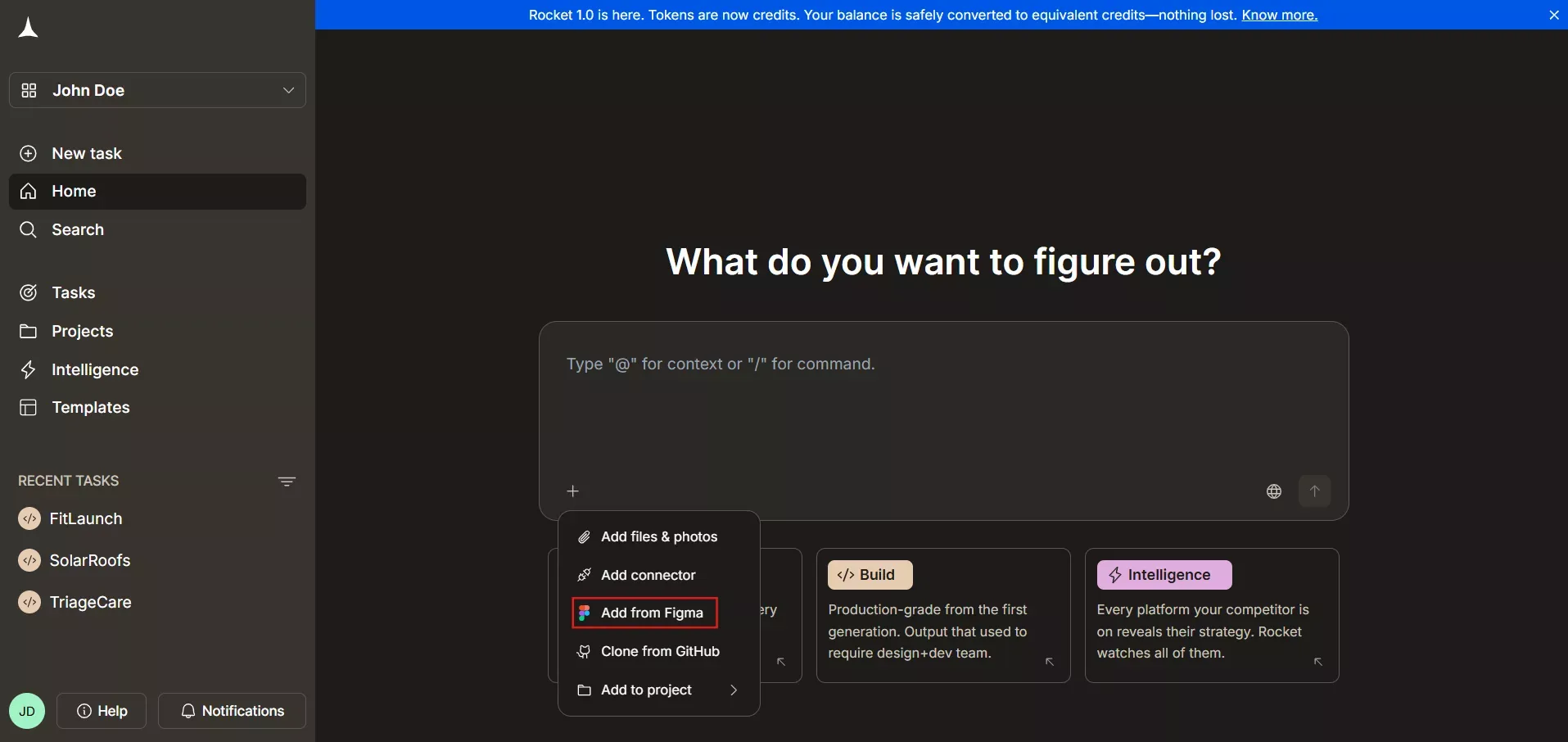
From Homepage:
- Click '+' sign and select Add from Figma.
From Account Settings:
- Click your profile icon → Account Settings.
- Go to the Connectors tab under Settings.
- Click on the Figma option
- Click Connect.
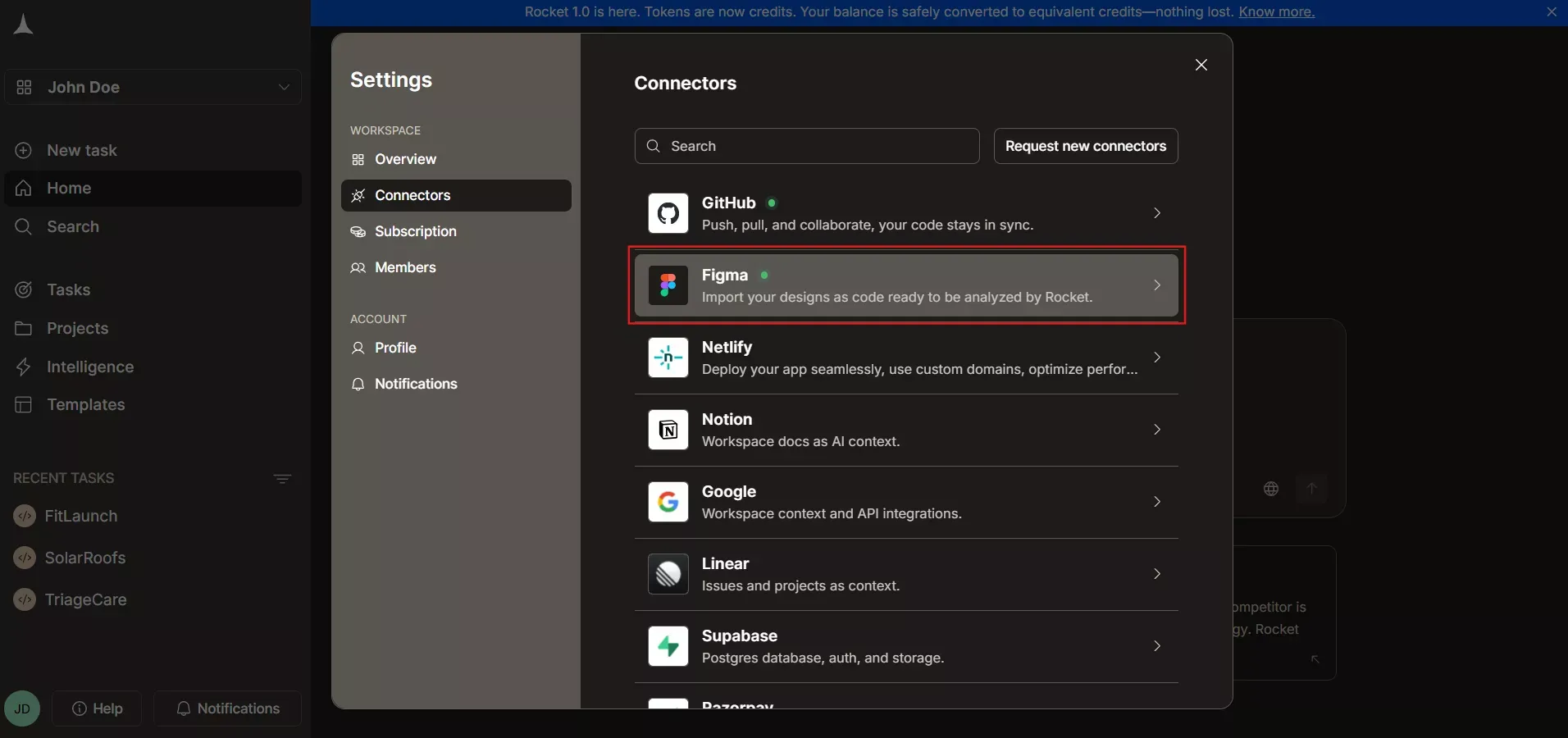
Once you select a connection method, you’re ready to authorize access and start importing your designs.
Step 2: Authorize Your Figma Account
After selecting a connection method, Rocket redirects you to Figma’s secure authorization page. This step ensures Rocket can access your designs safely.
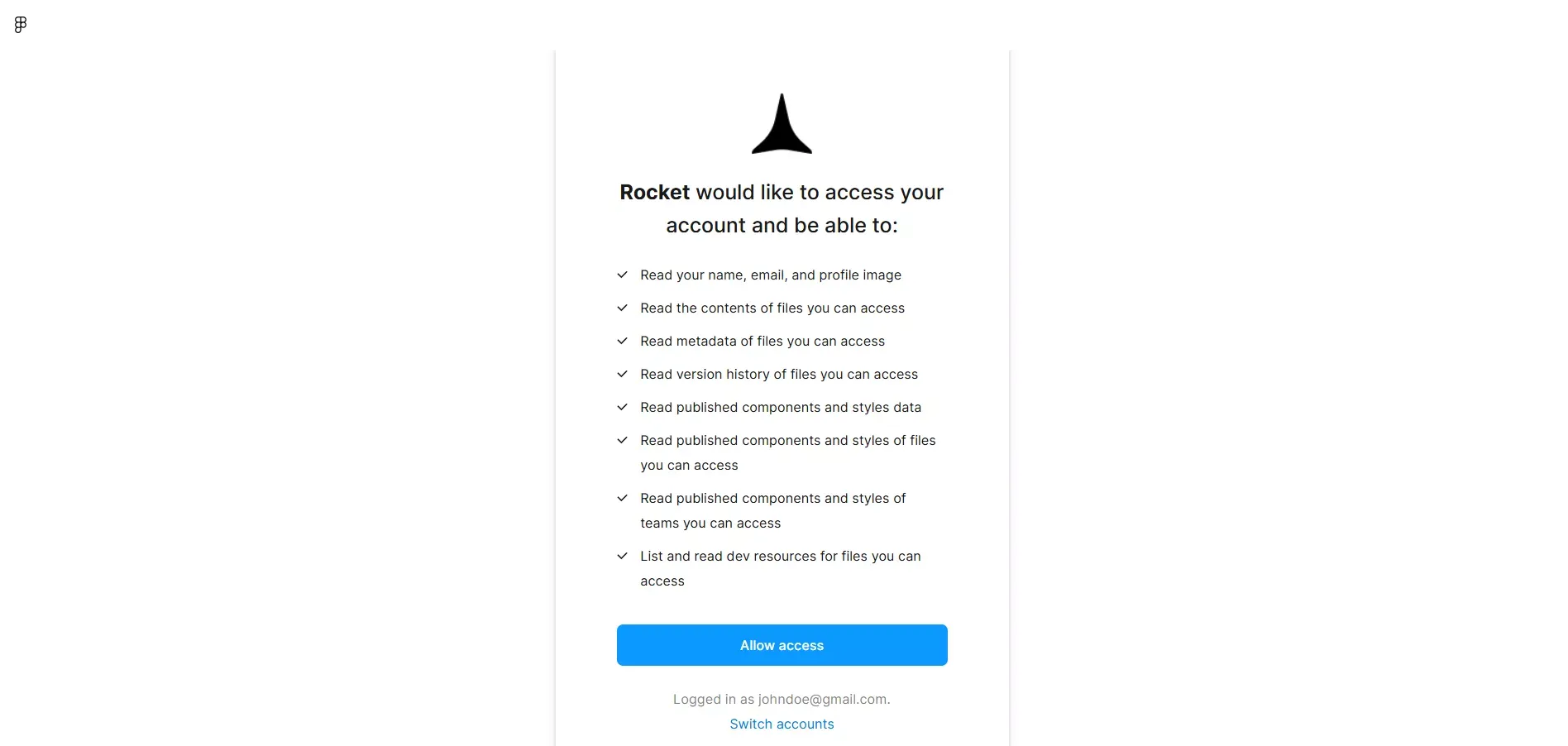
- Sign in to your Figma account (if not already signed in).
- Confirm the account to connect and click Allow Access.
- Permissions granted to Rocket include:
- Read files, your name, email, and profile image
- Read the contents of files, and the metadata of files you can access
- Read version history of files you can access
- Read published components and styles data
- Read published components and styles of files you can access
- Read published components and styles of teams you can access
- List and read dev resources for files you can access
- Success check: You’ll see a “Connected” message and be redirected back to Rocket.
Authorizing your account ensures that Rocket can pull your Figma designs to generate production-ready code.
Step 3: Switch or Disconnect Figma Account
If you want to switch Figma accounts, Rocket.new makes it simple without losing existing work.
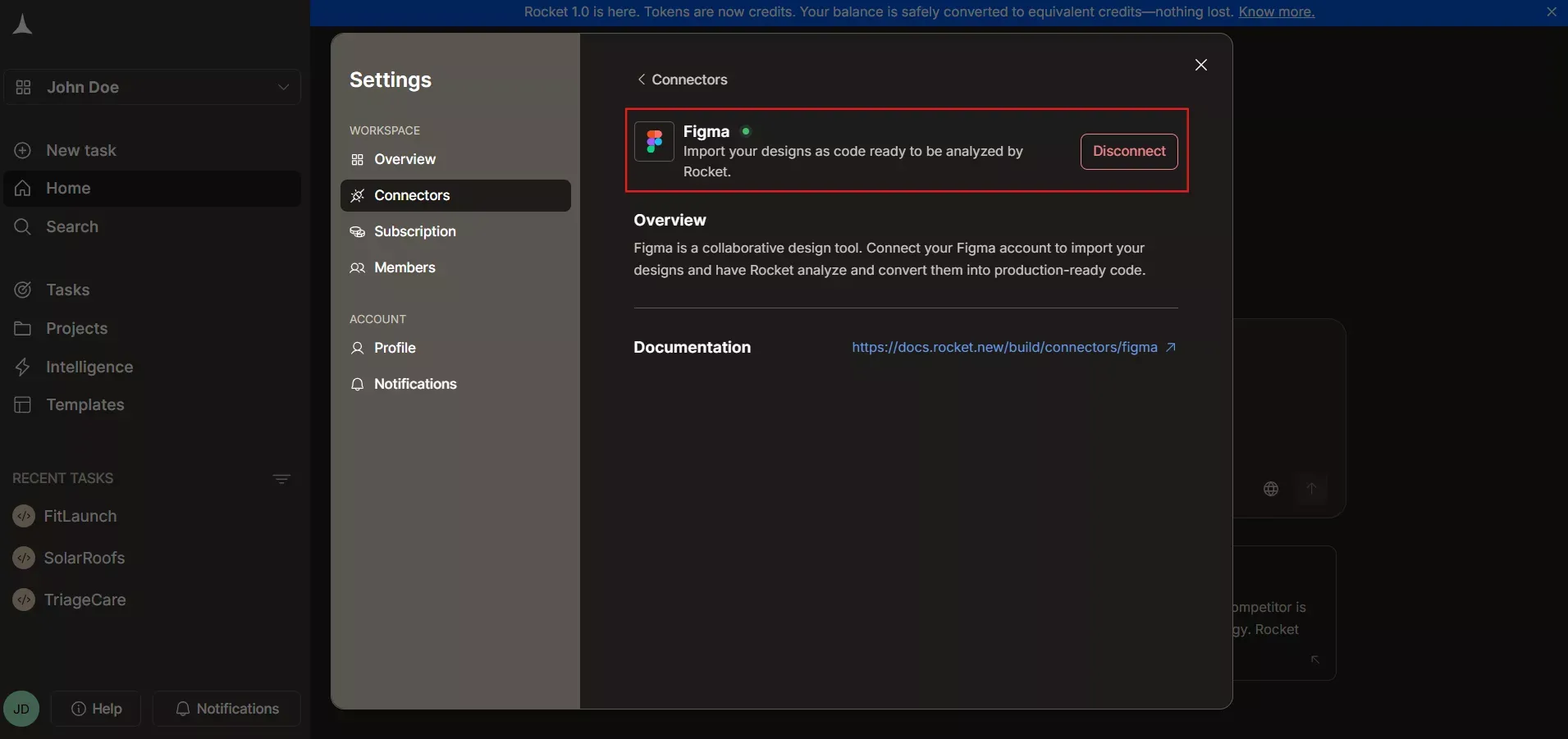
- Navigate to Account Settings → Connectors.
- Click Disconnect next to the Figma option.
- Confirm by clicking Disconnect, disconnect in the popup.
- To reconnect, repeat the connection flow with the new Figma account.
Switching accounts is straightforward, letting you keep your workflow flexible.
Step 4: Import and Build from Your Designs
With Figma connected, you can now import your Figma files and start converting your designs into app UI using Rocket.new.
- Select the Figma design files you want to import.
- Map components and layers if needed.
- Generate production-ready code for HTML, CSS, React, or react native.
- Preview your app UI and make adjustments before exporting.
Your Figma designs are now fully linked, ready to turn into working app interfaces with Rocket.new, maintaining design fidelity and clean code quality.
By following these steps, your Figma account is fully connected to Rocket.new, allowing you to seamlessly import designs, map components, and generate production-ready code.
This streamlined workflow reduces manual effort, preserves your design fidelity, and enables faster app development from visual mockups to fully functional interfaces.
HTML CSS Code and Component Structure
When converting Figma to HTML, Rocket.new focuses on:
- Clean HTML structure
- Organized CSS code
- Reusable components
- Separation of layout and styling
Instead of dumping everything into one long HTML file, the tool splits the UI into logical components. This approach helps developers implement features faster.
If you use Tailwind CSS, you can convert Figma and generate HTML CSS code that aligns with utility-based styling. This reduces the need for custom CSS across many websites and keeps styling consistent with your brand system.
From Figma to React and React Native
For modern web apps, React code is often preferred. Rocket.new can generate React components based on your Figma designs. These components follow a modular structure.
When you generate React for the web, the code includes:
- JSX structure
- CSS or style mapping
- Reusable UI components
For mobile, React Native adapts layout constraints and converts design elements into mobile-friendly components.
This Figma-to-code workflow makes it easier for developers to focus on business logic rather than rewrite layout code from scratch.
Code Quality and Production Ready Code
One concern teams raise is code quality. Generated code should not be messy. Rocket.new is designed to generate production-ready code with structured folders and readable naming.
Production-ready code means:
- Clean component separation
- Logical file structure
- Maintainable css and html
- Easy customization
You still need to review and implement application logic. Yet the layout and UI layers become more time-efficient.
According to the 2025 Stack Overflow Developers Survey, AI adoption among developers continues to climb, with 84% now using or planning to use AI tools in their workflow, up from 76% last year. Even more notably, 51% of professional developers report using AI tools on a daily basis.
According to Figma's 2025 Designer-Developer Trends report, 91% of developers and 92% of designers believe the handoff process between design and development could be improved, showing that UI workflow friction is widespread in modern teams."
Preview, Customize, and Match Your Brand
After generating code from your Figma designs, Rocket.new lets you preview, edit, and align your app UI with your brand before exporting. This step ensures your app looks exactly as envisioned in your design files.
Key Highlights:
- Live Preview: Instantly see updates as you edit your app UI, including responsive behavior.
- Customize CSS Code: Adjust color tokens, typography, spacing, and layout constraints to match brand guidelines.
- Reusable Components: Use pre-built elements to speed up edits while maintaining consistency.
- Command-Based Actions: Quickly scope edits and run actions using / and @.
- Seamless Brand Matching: Keep your app consistent with logos, color schemes, and design systems.
Rocket.new combines design fidelity with flexibility, allowing teams to preview changes, customize styles, and maintain a branded, polished app interface before export. This gives full control over the final product while saving time and effort.
Figma Plugin vs Rocket.new Platform
You may wonder whether to use a Figma plugin or an external platform. A plugin runs inside Figma and can export HTML and CSS code directly.
Rocket.new supports Figma link access and provides additional project management features, preview options, and structured exports.
If you manage multiple Figma files and app screens, a centralized project-tracking tool may be better than a simple plugin.
Practical Workflow for Teams
Here is a simple workflow:
- Designers create Figma designs using a defined design system.
- Developers review layouts in dev mode.
- Copy the Figma link into Rocket.new.
- Select target framework.
- Generate code.
- Preview and export.
- Integrate into the app project.
This structured process reduces manual coding and improves collaboration between designers and developers.
Takeout from This Workflow
By using Rocket.new to convert Figma designs, you:
- Save time on repetitive layout coding
- Generate production-ready code faster
- Maintain better code quality
- Keep a single source of truth between design and the app
- Reduce friction in the development process
You still control architecture, data handling, and feature logic. The tool focuses on UI structure and layout generation.
Turning Figma Designs into Real App Interfaces
Design and development do not have to feel disconnected. With a structured Figma-to-code workflow, teams can convert Figma assets into production-ready code, preview results, and export structured files for real projects.
If you are evaluating how to convert a Figma design to code in a practical, time-efficient way, tools like Rocket.new provide a clear path from a Figma link to a working app UI.
Table of contents
- -Why Figma to Code Matters for Modern App Development
- -Here’s How It Works
- -Step 1: Choose Your Connection Method
- -Step 2: Authorize Your Figma Account
- -Step 3: Switch or Disconnect Figma Account
- -Step 4: Import and Build from Your Designs
- -HTML CSS Code and Component Structure
- -From Figma to React and React Native
- -Code Quality and Production Ready Code
- -Preview, Customize, and Match Your Brand
- -Figma Plugin vs Rocket.new Platform
- -Practical Workflow for Teams
- -Takeout from This Workflow
- -Turning Figma Designs into Real App Interfaces