
TL;DR: You can convert Figma to website no code using a Figma plugin and a no-code builder. Rocket imports your Figma file, generates production-ready HTML and CSS, and publishes a live site with a custom domain with no developer required.
Why Designers Are Skipping Traditional Coding?
Designers love control. A Figma design gives pixel precision. Colors, spacing, and auto-layout are clean on the Figma canvas. But the old process involved coding, handoffs, back-and-forth emails, and long team meetings.
The handoff process and implementation used to take weeks. Designers would export Figma assets. Developers would rebuild the layout in HTML and CSS. Then test mobile responsiveness. Then fix spacing. Then repeat.
Now, tools and plugin systems let designers export HTML or create a full HTML website directly. Some even generate CSS code automatically. That means less coding, less waiting, and more control.
Figma holds about 40.65% market share among design tools and serves millions of active users globally, making it a leading platform for creating web experiences before launching them as live sites. According to the 2023 Stack Overflow Developer Survey, 91% of developers say the design-to-development handoff process needs improvement.
Starting With Lo-Fi Frames
Before building a website, designers typically step back and refine their initial ideas. Structure comes first, visuals come later. No colors. No polish. Just clarity.
Designers begin with lo-fi frames to shape ideas with a lo-fi structure. They test early ideas with limited fidelity and focus on layout logic rather than decoration.
What Happens in This Stage?
- Sketch basic sections and content blocks
- Map out complex flows for an app or website
- Plan landing page hierarchy
- Define navigation paths
- Adjust spacing and structure inside Figma
A product designer may outline the full app journey directly in Figma before refining the visuals. Teams also use Figma slide templates during presentations to share product vision clearly during kickoffs and retros.
Once the Figma design feels structured and validated, it is ready for the next step. That is when teams confidently turn Figma designs into a real website.
If you want to go deeper on structuring Figma files for production, the guide on converting Figma design to code with Rocket covers the full connection and import workflow.
The Role of Plugins and Builders
Plugins are doing serious work here. A plugin inside Figma can:
- Convert frames into HTML blocks
- Generate CSS automatically
- Map components to responsive layouts
- Connect to a website builder
- Add animations
- Support mobile responsiveness
Some plugin options also let designers publish websites straight from the Figma file. No manual coding needed.
A website builder then handles hosting, publishing, custom domain setup, and performance. Many offer a free domain for testing.
Here is a quick comparison of traditional coding vs. the Figma-to-builder process:
| Feature | Traditional Coding | Figma to Builder Process |
|---|---|---|
| HTML writing | Manual HTML coding | Auto-generated HTML |
| CSS styling | Manual CSS code | Auto CSS from Figma design |
| Publish | Upload via FTP | One-click publish |
| Mobile responsiveness | Hand coded | Based on auto layout |
| Time to launch | 2 to 4 weeks | Hours |
That shift removes the developer bottleneck entirely and gives designers full control over the final output.
Step-by-Step: Convert Figma to Website No Code
Turning a clean Figma design into a live website follows a clear, repeatable process. Here is how it works from start to finish.
Step 1: Prepare a Structured Figma File
Everything begins inside a Figma file. This is where the foundation is built.
Designers focus on:
- Using auto layout correctly for flexible sections
- Setting up responsive layouts for different screen sizes
- Organizing files and layers clearly
- Naming components properly
- Keeping spacing consistent
A well-organized Figma design makes the next step much easier. If the structure is messy, the output will be messy too. Rocket's Figma pipeline reads the design system underneath the coordinates, not just the visual positions, so clean layer structure directly improves output quality.
Step 2: Connect Figma to Rocket
The Figma import feature in Rocket connects your Figma design directly to Rocket's builder. Once connected, it reads:
- Frames and sections
- Typography and font styles
- Spacing and alignment
- Colors and images
Click the + button in Rocket's input area, select Add from Figma, paste your Figma file or frame URL, and click Start Import. You can import up to 40 screens at once and choose your tech stack: Next.js, HTML, or React.
Step 3: Refine in the Rocket Editor
Once the import completes, Rocket opens the editor with your layout already converted. From here you can:
- Edit sections visually without touching code
- Add AI-powered backend logic and data workflows
- Connect integrations like Supabase, Stripe, and Google Analytics
- Preview mobile responsiveness in real time
- Use chat to describe changes in plain language
No re-explaining is needed. Rocket retains full context of the imported design across every edit.
Step 4: Preview, Test, and Publish
Once the design is finalized as a working layout, the final steps are straightforward.
Designers can:
- Preview the site in the browser
- Test mobile responsiveness
- Connect a custom domain
- Add Google Analytics
- Click publish
That is it. The Figma design becomes a real website. Many Figma sites now include high-performance hosting and unlimited bandwidth. It performs like a proper product, not just a visual export.
Video Walkthrough: Figma to Website in Under 10 Minutes
Watch the complete figma to website no code workflow using Rocket: from Figma file to live site in under 10 minutes.
Creating Responsive and High-Performance Websites
Responsive websites are no longer optional. Mobile responsiveness is expected; visitors quickly leave a site that does not render properly on their phones. Using Auto Layout in Figma makes this much easier. When a plugin converts a Figma design to HTML and CSS, responsive layouts remain intact and structured.
Some Figma sites also allow designers to add animations, like buttons and toasts. These small touches make the website feel alive. That subtle movement can help turn customers into believers because the interaction feels real rather than static.
A live website should also feel smooth and fast. High-performance hosting and unlimited bandwidth from modern builders keep the site stable during traffic spikes. Designers can upload high-resolution images directly, making sure the final website looks sharp and performs well.
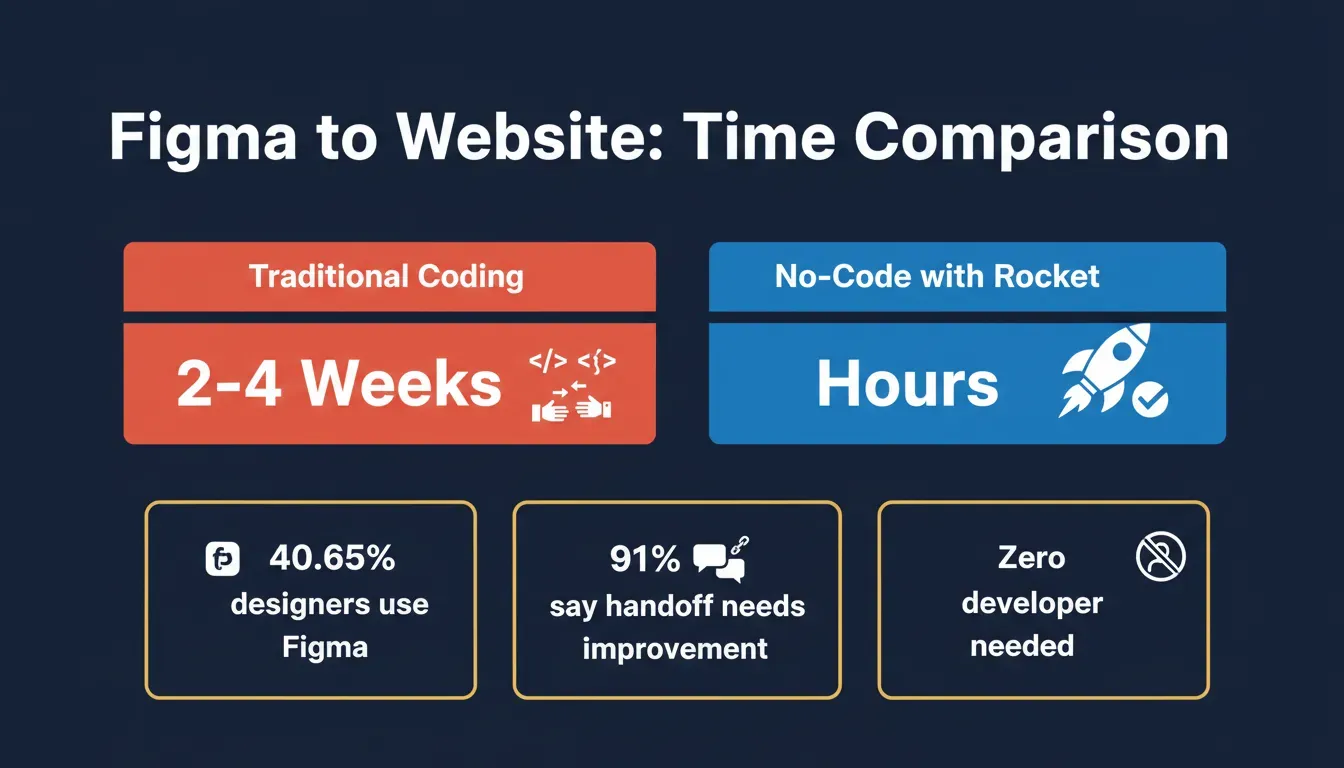 Data comparison: traditional coding vs. no-code Figma-to-website workflow. Sources: Business Insurance Index 2025, Stack Overflow Developer Survey 2023.
Understanding how Rocket preserves every spacing value and design token during import is explained in detail in the post on Figma file to production code fidelity.
Rocket vs. Competitors: Figma Import Compared
Not all no-code tools handle Figma imports the same way. Here is how Rocket compares to Framer, Webflow, and Anima when converting Figma designs to live websites.
| Feature | Rocket | Framer | Webflow | Anima |
|---|---|---|---|---|
| Figma import method | Full import via built-in connector | Partial frame import | Manual rebuild required | Code export only |
| AI-powered backend | Yes, built-in | No | No | No |
| Responsive output | Auto from Figma auto layout | Manual adjustments needed | Manual configuration | Static HTML only |
| Custom domain | Yes | Yes | Yes | No |
| No-code visual editor | Full visual editor | Visual editor | Visual editor | Code-first |
| Time to publish | Hours | Days | Days | Not applicable |
| Code export | Yes, Next.js and Flutter | Limited | Yes | Yes |
Rocket goes further than Framer or Webflow by adding an AI-powered backend layer that handles logic, data, and workflows automatically. Designers who want to convert Figma to website no code without rebuilding layouts manually will find Rocket's approach significantly faster.
Framer requires manual adjustments after import and does not generate backend logic. Webflow requires designers to manually recreate layouts rather than importing Figma files directly. Anima exports static HTML code but does not publish a live, hosted site. See a full breakdown on the Rocket vs. Framer comparison page.
Turning Figma Into Real Apps and Websites with Rocket
When the goal is to move from a Figma design to a working product without heavy coding, Rocket comes in. It connects Figma files directly to a builder environment where designs become real web apps and websites, with responsive layouts, styled components, and clean production code that matches the original design.
Instead of manually rebuilding layouts in HTML and CSS, designers import Figma and convert structured frames into deployable web experiences. That means less time rewriting CSS code and more time refining the actual product.
What You Can Build with Rocket's Figma Import
Rocket's Figma import supports far more than simple landing pages. Here is what it handles out of the box:
- Design to code: Import any Figma frame and get a fully coded version with responsive layouts. Rocket matches your layers, spacing, and styling automatically.
- Component library handoff: Turn your Figma component library into reusable code components with variant support.
- Prototype to production: Import a clickable Figma prototype and get a working multi-page app with real navigation and route transitions.
- Marketing pages: Convert Figma marketing designs into pixel-perfect, responsive code for desktop, tablet, and mobile.
How to Connect Figma to Rocket
Figma connects to Rocket via OAuth. No API key is needed. There are two ways to connect.
Option 1: From the import flow (fastest)
Click the + button at the lower left of the chat input inside Rocket and select Add from Figma.
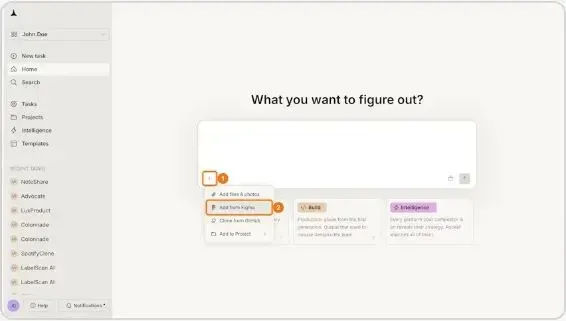 Click + at the lower left of the chat input, then select Add from Figma.
A popup appears asking you to connect your Figma account. Click Connect.
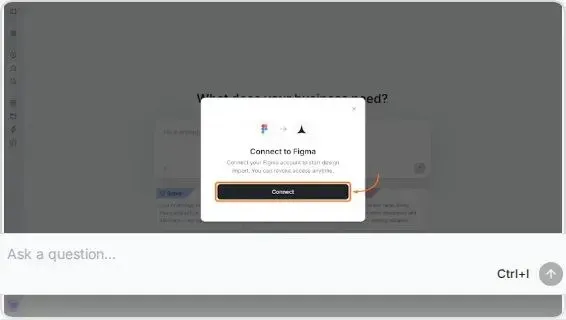 The Connect to Figma popup appears. Click Connect to begin OAuth authorization.
Option 2: From workspace Settings
Click your workspace name in the top-left, select Settings, then open the Connectors tab. Click the Figma card and click Connect. Connecting from Settings makes Figma available across all tasks in the workspace.
After clicking Connect
Figma opens an authorization screen. Sign in if prompted, review the permissions, and click Allow access.
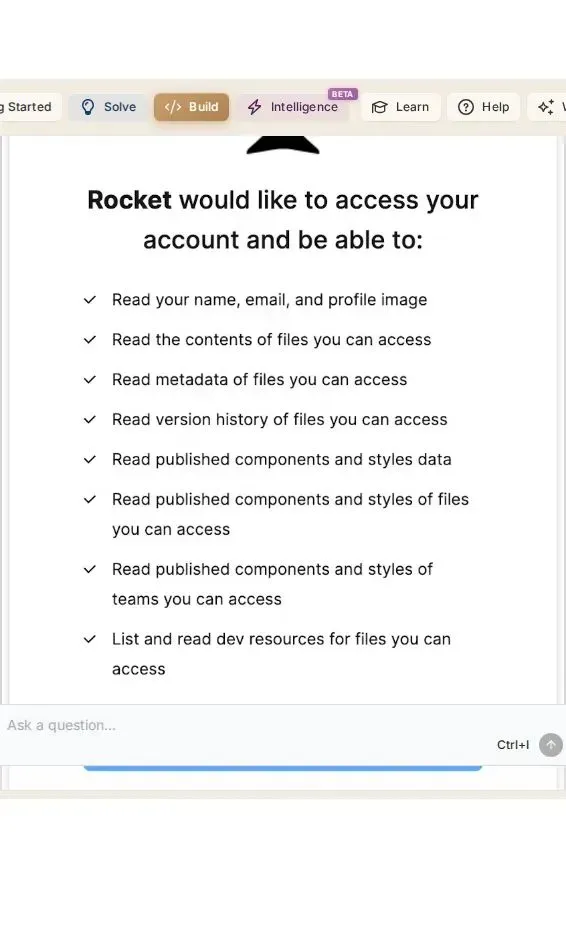 Figma's OAuth screen. Review the permissions and click Allow access to complete the connection.
A green dot appears next to Figma in your connectors when the connection is active.
How to Import a Figma Design into Rocket
Once connected, the import process takes five steps:
Step 1: Copy your Figma link Open your Figma file, click Share, then Copy link. You need view or edit access to the file. Use a file or frame URL, not a prototype link.
Step 2: Open the Figma import in Rocket Click the + button at the lower left of the chat input and select Add from Figma.
Step 3: Select frames Paste your Figma URL into the dialog. Rocket displays the frames from your file. Select the screens you want to import. You can import up to 40 screens at once.
Step 4: Choose your tech stack and import Choose your output: Next.js, HTML, or React for web apps. Click Import. Rocket fetches your design assets, reads the layer structure, extracts spacing tokens and design intent, and generates structured, readable code screen by screen.
Step 5: Refine in chat Once generation completes, use the chat panel to add interactivity, connect data sources, fix visual mismatches, or refine layouts in plain language. No need to go back to Figma for changes.
What Rocket Reads from Your Figma File
Rocket does not just read pixel coordinates. It reads the design system underneath the visual layer:
| What Rocket Reads | What It Produces |
|---|---|
| Auto-layout properties | Responsive flex layouts in code |
| Spacing tokens (8, 16, 24, 32px) | Tailwind utility classes (p-4, p-6, gap-4) |
| Typography hierarchy | Correct heading and body component structure |
| Color system by usage | Design tokens mapped to primary, secondary, accent |
| Component instances | Reusable code components with variant support |
| Prototype click connections | Page routes and navigation links |
This is what separates Rocket from tools that only read appearance. A padding value of 24px is not treated as a random number. Rocket recognizes it as the 6th step in a 4px spacing scale and maps it to the correct utility class, so the output matches the design exactly.
After Import: What You Can Do Next
Once Rocket generates your app from Figma, the build does not stop there. You can:
- Add real data: Connect Supabase to wire up your imported layouts with a live database, authentication, and API endpoints
- Add payments: Drop in Stripe checkout flows directly onto your Figma-designed pages
- Deploy live: Publish to a live URL via Netlify or Rocket's built-in hosting with one click
- Iterate with chat: Describe any change in plain language and Rocket applies it in context, with full memory of what was imported
- Visual edit: Click any element in the preview to adjust text, spacing, colors, or layout without touching code
Key Tips for Best Results
- Name your layers clearly. Well-named layers, proper auto-layout, and consistent spacing produce significantly better code output.
- Use auto-layout throughout. Frames built with auto-layout generate responsive flex containers. Frames without it produce fixed-position code.
- Prototype flows map to routes. Click-through connections in your Figma prototype are mapped to page routes and navigation links in the generated app.
- Start with key screens. Import your 5 to 10 most important screens first, then add more incrementally using the Add new screen option.
- Fix mismatches in chat. If a shadow, spacing, or color does not match, describe the difference and Rocket corrects it without a full re-import.
- Web only. Figma import is not available in the Rocket mobile app.
Rocket Figma Import: Feature Summary
Top features include:
- Figma Import: Converts design files into live, editable layouts preserving typography, spacing, and color system
- Prompt to App Creation: Builds apps directly from natural language prompts
- AI-Powered Backend: Automatically handles logic, data, and workflows
- Custom Domain Support: Publishes projects with a branded domain
- Code Export: Allows developers to extend or customize in Next.js or Flutter
- 25+ Integrations: Stripe, Supabase, Google Analytics, Mailchimp, Airtable, and more connect directly into the build
Designers can connect a custom domain, configure Google Analytics, and publish updates quickly. The platform helps teams build web apps and websites without writing repetitive code logic.
For designers who want to build interactive prototypes before importing, the guide on creating high-fidelity Figma prototypes quickly covers how to structure screens and flows before the import step.
The Future of Figma to Website No Code
Designers spent years depending on coding teams. The gap between Figma design and live website felt long. Handoff delays slowed projects. Coding errors changed layouts.
Tools now let designers handle figma to website no code workflows end to end. Plugins convert HTML and CSS automatically. Builders manage hosting, publish cycles, custom domain setup, and high-performance delivery.
Designers can create, connect, and publish without deep coding knowledge. The website becomes fast. Updates feel simple. Less waiting. More building. That is the shift.
If you are exploring how no-code tools fit into broader product development, the overview of no-code AI builder capabilities covers what modern platforms can handle beyond just websites.
Ready to convert your Figma design to a live website without writing a single line of code? Rocket makes the entire figma to website no code process fast, visual, and production-ready. Start building for free on Rocket and go from Figma file to live site in hours.
Table of contents
- -Starting With Lo-Fi Frames
- -What Happens in This Stage?
- -The Role of Plugins and Builders
- -Step-by-Step: Convert Figma to Website No Code
- -Step 1: Prepare a Structured Figma File
- -Step 2: Connect Figma to Rocket
- -Step 3: Refine in the Rocket Editor
- -Step 4: Preview, Test, and Publish
- -Video Walkthrough: Figma to Website in Under 10 Minutes
- -Creating Responsive and High-Performance Websites
- -Rocket vs. Competitors: Figma Import Compared
- -Turning Figma Into Real Apps and Websites with Rocket
- -What You Can Build with Rocket's Figma Import
- -How to Connect Figma to Rocket
- -How to Import a Figma Design into Rocket
- -What Rocket Reads from Your Figma File
- -After Import: What You Can Do Next
- -Key Tips for Best Results
- -Rocket Figma Import: Feature Summary
- -The Future of Figma to Website No Code